Getting started with PlantSheets
PlantSheets helps you manage a growing operation across three areas. Inventory is your spreadsheet of every plant, Scheduler plans care tasks and reminders through the year, and Harvests records how much you pick and shows your totals. Here's how each one works.
Inventory
Your plants live in spreadsheet-style tables. Each plant type (e.g. Fig, Apple) is a tab across the top, and every plant/variety is a row. You choose which columns each type has, and you can add, remove, or reorder columns at any time.
Set up your first table
- Create a plant type: on the Inventory page, click the Create a new plant type button on the welcome screen (shown before you've added any types). Once you have at least one type, add more with the + tab at the far right of the row of tabs along the top. Pick a ready-made template or choose your own columns.
- Add rows (plants):
- Add one row: hover the left-most (configuration) column between two rows and click the orange + circle that appears (“Click to insert a row here”). Or right-click a row and choose Insert Row Above or Insert Row Below.
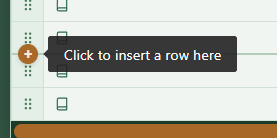
The orange + appears between rows in the left-most column — click it to insert a row there. - Add several rows at once: right-click a row and choose Insert 5 Rows Above or Insert 5 Rows Below.
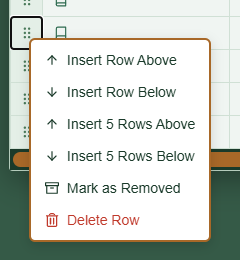
Right-click a row's handle to open this menu — choose Insert 5 Rows Above/Below to add several at once.
- Add one row: hover the left-most (configuration) column between two rows and click the orange + circle that appears (“Click to insert a row here”). Or right-click a row and choose Insert Row Above or Insert Row Below.
- Enter data: click any cell to type, then press Tab to jump to the next cell (or click elsewhere). Your changes save automatically as soon as you leave a cell — there's no Save button. The Notes cell opens a larger pop-up editor for longer text.
Manage the table
- Reorder rows: drag a row by its handle (the dotted grip on the far left).
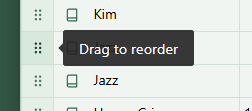
Drag the dotted grip on the far left to move a row up or down. - Add, remove, or reorder columns: click the gear (settings) icon on the plant-type tab to open Edit Columns. Tick/untick columns, drag them into the order you want, and rename the type. Removing a column deletes its data — you'll get a warning first.
- Resize a column: drag the divider on the right edge of a column header.
- Delete rows (plants): right-click a row and choose Delete Row.
- Archive a plant (keep its history): right-click and choose Mark as Removed with a reason. It's hidden but its harvest history is kept. Use Show removed to see archived plants, and right-click → Restore to bring one back.
- Plant diary & details: click the book icon at the start of a row to open dated notes for that specific plant.
- Log a harvest: the Log Harvest button in the toolbar records a pick for a variety (also see Harvests below).
Scheduler
Plan recurring care and harvest reminders across the year, per plant type. Each type has rows for Pest Spraying, Fertilizing, Pruning, and Harvesting. Every month is split into four weeks.
How to use it
- Pick the year (current or next) at the top.
- Schedule a task: click a week cell on a care row. In the pop-up, set the date, add notes, and optionally turn on an email reminder (choose how many days before).
- Mark tasks done when finished — the whole task at once, or plant-by-plant.
- Harvest reminders: click a week on the Harvesting row to set one reminder for all varieties at once, or click the row's arrow (N varieties) to expand and schedule each variety separately.
- Reuse last year's plan: when you open a year that has no schedule yet and the year before it does have one, a Copy from [year] button appears at the top — click it to duplicate that schedule into the new year, then tweak it.
Harvests
Record how much you pick and see totals and trends per variety and plant type.
How to use it
- Log a harvest: use Log Harvest (from Inventory's toolbar, or on a plant type in the Harvests page). Enter the date, amount and unit (kg, lb, count, punnets…), and optionally attribute it to a specific plant.
- Read the report: the Harvests page shows total harvested and per-plant averages per variety, the harvest window (date range), and a star on the top yielder.
- Drill in: click a variety's arrow (▸) to see the per-plant breakdown.
- Edit past entries: click the edit (✎) button on a variety to open its log and change quantities/units or remove entries.